Choose your scan URL
The scan URL, also called a short domain, is the link people see on their phone the moment they scan your QR code. It's not your own long website link, but a short and recognizable one. With QRcode.me you choose which link that is.
What QRcode.me gives you
- You decide yourself which scan URL appears
- You can personalize it for extra recognition
How do I choose my scan URL?
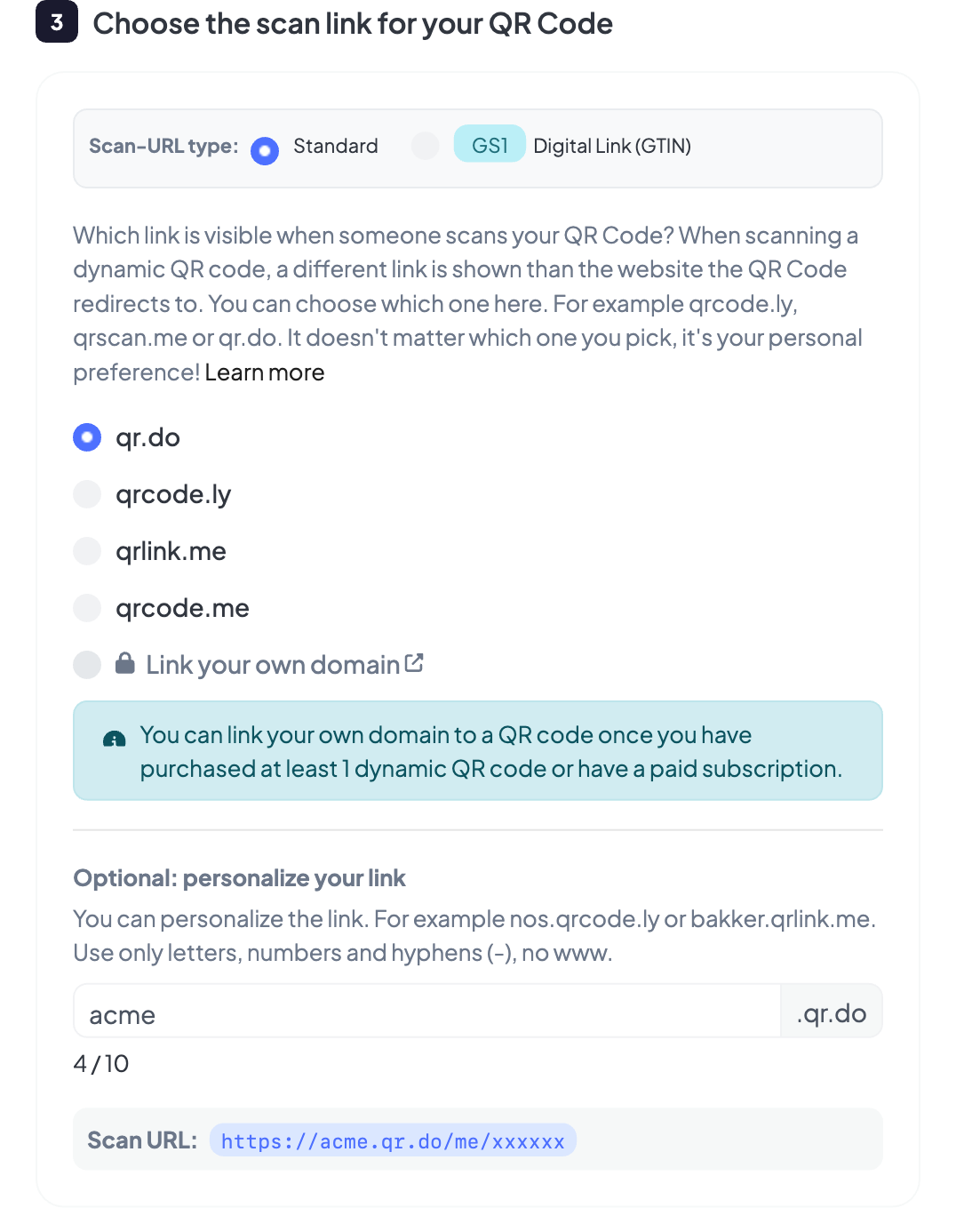
In the QR generator you pick which scan URL a dynamic QR code uses. These domains all belong to QRcode.me:
qr.do
qrcode.ly
qrlink.me
Personalize your scan URL
Next to the domain you can add your own subdomain. Leave it empty and you'll see, for example, qrcode.ly on screen. Fill something in and your own name goes in front.
Say your target website is acme.com. Then you'd pick a scan URL like:
acme.qrcode.ly
acme.qr.do
When someone scans, they see your own name in front of the link. There are a few rules for this personalization:
- Use only letters, numbers and an optional hyphen
- Don't use
www. - Use no more than 64 characters
Tip: keep it short
When you scan with an iPhone or iPad camera, it only shows a limited number of characters on screen. Stay under that and the visitor sees your full personalized link. Our advice per domain:
qr.do
qrcode.ly
qrlink.me
Pick more characters anyway? No problem. The iPhone then shows just the domain, and your QR code keeps working. People who scan with an Android phone or a separate scan app usually do see the whole link.
Connect your own domain name
Want to go one step further? With a paid plan you connect your own domain name as the scan URL. Instead of one of our domains, visitors then see your own web address on screen. You set this up yourself in your account, with no waiting for manual approval.
acme.qr.do
acme.com
Connecting works in three steps:
Add your domain
Add your (sub)domain in your account under “Domains”.
Set up DNS
Point your domain to our server with a CNAME or A record.
Active automatically
We check your DNS and activate the domain automatically.
Once your domain is active, you pick it as the scan URL when you create or edit a QR code. The benefits:
- Professional — visitors see your brand name instead of a generic link
- Trustworthy — a recognizable address builds confidence, so people click through faster
- More control — you keep your QR codes consistent with your own branding
What do you see when scanning?
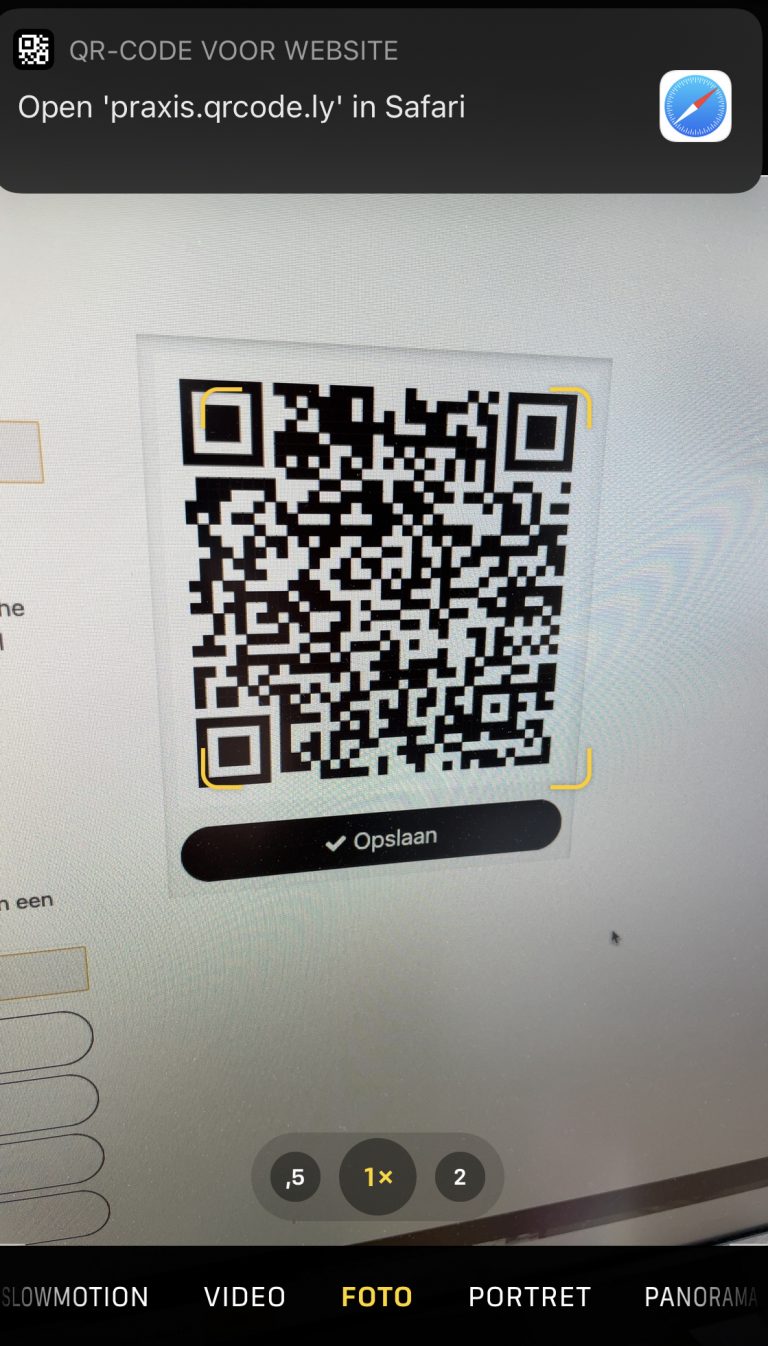
Here's the result. The QR code points to acme.com, but thanks to the personalized scan URL the phone neatly shows acme.qrcode.ly on screen.