With QR codes, you can easily share contact information to someone's phone. Create this QR code, customize, and track for free at FreeQRCode!
QR-codes sharing contact info
Business cards often can't be found, are lost, or are impractical. QR-codes offer a viable alternative to this! Paper isn't necessary anymore, and the contact info is automatically saved in the phone of the other person. At QRcode.me you can generate a business card QR-code, and this blog explains how.
In short
- QR-codes can be used as virtual business cards, saving contact info directly to the recipient's phone.
- You can generate a business card QR-code by selecting the vCard option and entering the desired contact information.
- When scanned, the recipient's phone will display a pop-up with the contact details, which can be saved in their contact app.
Creating a QR-code with vCard option
Business card QR-codes come in handy when trying to share your details at an event, completely paperless! To generate a business card QR-code you have to select the option vCard. Then you can enter all information that you want to share. If you don't want some information in your QR business card, then it's best to enter a dash, slash, or the like. If you don't fill in anything the QR-code might not function normally. Once having filled out all the data, you can choose to customize your QR-code. For all the options when customizing a QR-code and further explanation click here. When generating a QR-code business card, choose the option vCard and enter the required information.What will it look like?
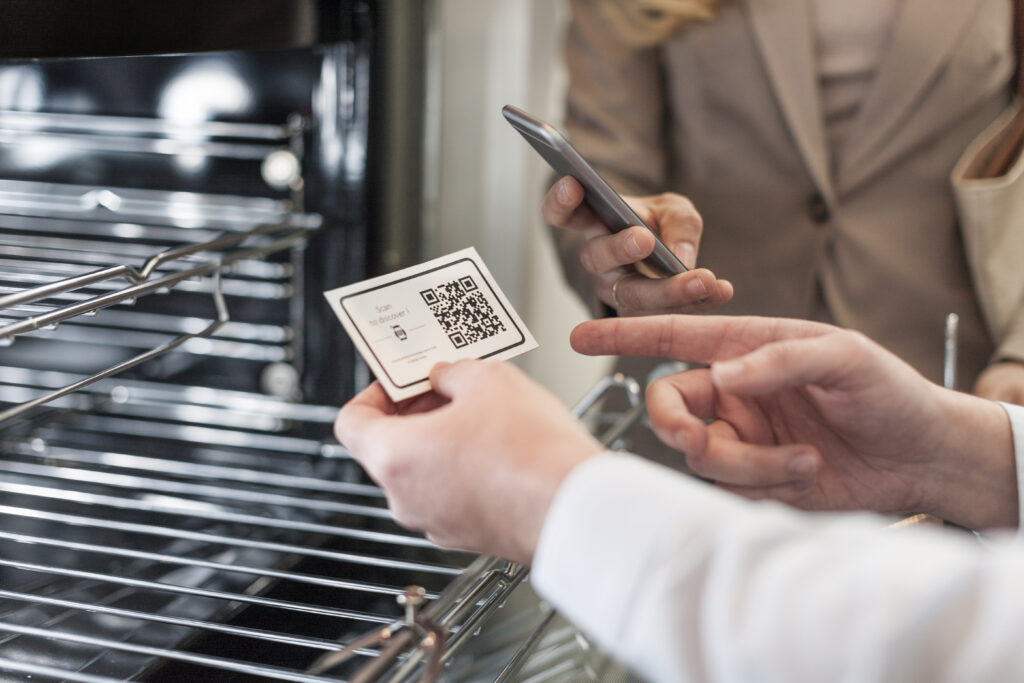
Just one click shares the contact info to the phone of your interlocutor.When you want to share contact information with someone, you can allow that person to scan your QR-code. A pop-up will then appear on the phone of that person where that person can click on. Your interlocutor just has to click save, and all the info is shared & saved! Note: The vCard data can either be downloaded and saved directly, or first seen in preview and then downloaded. Want to download it directly? Choose a paid QR-code and choose 'download directly to contacts' (either Android or Apple).
vCard QR-code